Discord
Connect your company's own Discord bot, pick channels one by one and let people and agents reply from Laze.
Laze mirrors the Discord channels you pick, so you read and answer them from Laze and add agents to them. Discord stays the source: Laze keeps a short cache to show messages fast and reads older history from Discord when you scroll back.
Connect your Discord server (admins)
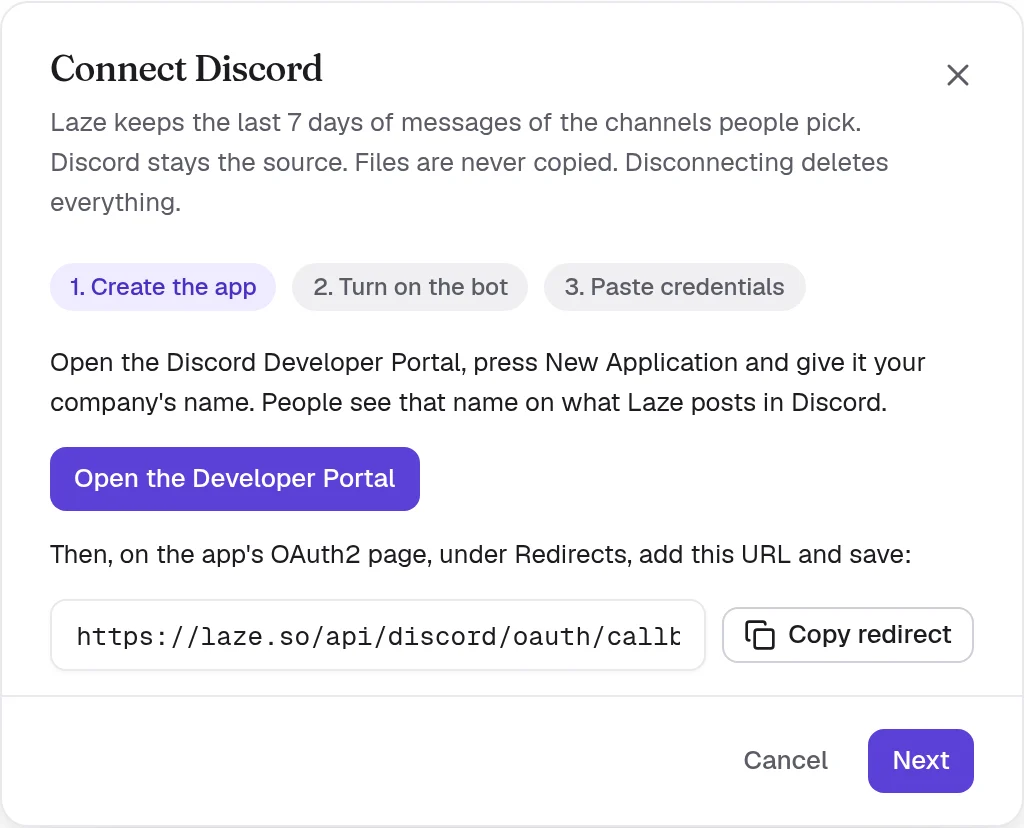
Discord needs a bot to read a server, so each company makes its own private bot. An admin does this once. The dialog in Laze walks through every step.
Open the setup
Open Settings, Slack and Discord, choose the Discord tab and click Connect Discord.
Create the app
Click Open the Developer Portal, press New Application and give it your company's name. People see that name on what Laze posts in Discord. On the app's OAuth2 page, under Redirects, add the URL from the dialog and save.
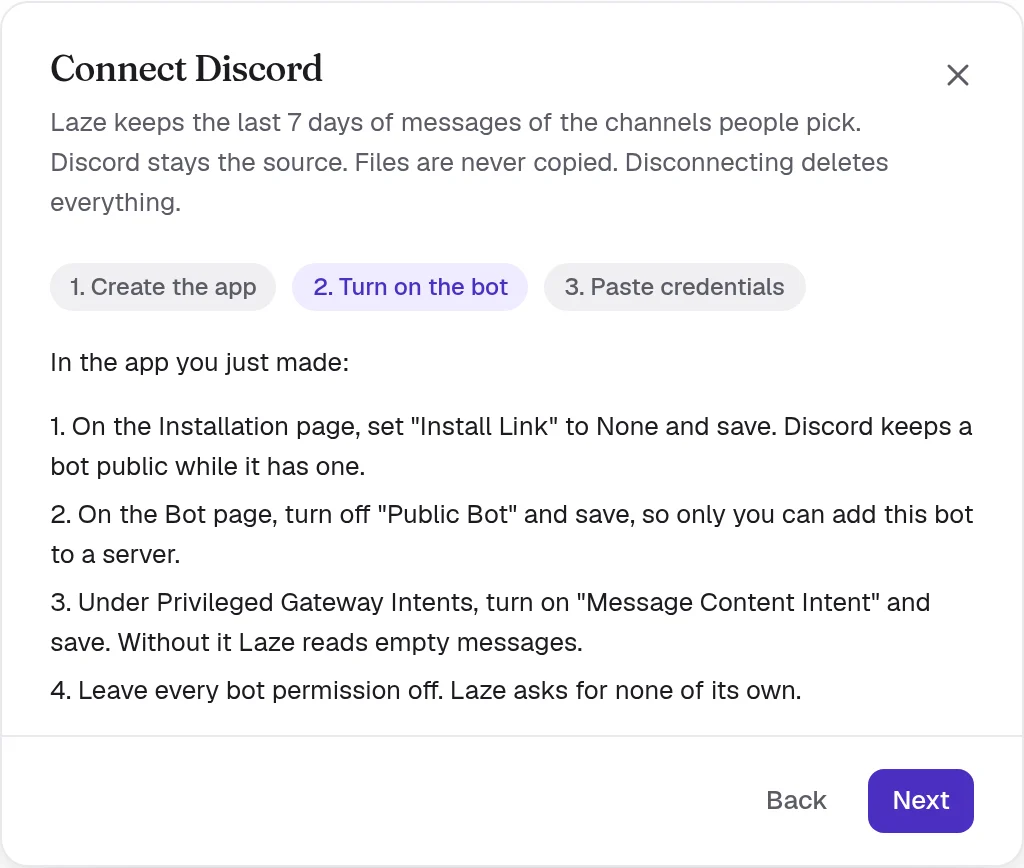
Turn on the bot
Set Install Link to None on the Installation page, turn off Public Bot and turn on Message Content Intent. Leave every bot permission off: Laze asks for none of its own.
Paste the credentials
Copy the Application ID, Client Secret and Bot Token into Laze. They go into the workspace keychain and are never shown again.
Add the bot to your server
Click Save and add to server and choose your server. Laze checks the token before it connects.
Connecting the bot mirrors nothing for anyone yet. Each person links their own account and picks channels in the next step.
Link your account and pick channels
Open Settings, Slack and Discord, Discord and click Link your Discord account. Laze asks Discord only who you are.
Then Laze lists the text channels Discord lets you view, each with a checkbox. Tick a channel to mirror it. Announcement channels and forums show in the same list. Messages in channels that no one picked are dropped unread.
Two people who pick the same channel share one conversation in Laze. If you lose access to a channel in Discord, you leave its conversation in Laze too.
Private channels
The bot can read only what Discord lets it read. A picked channel it cannot view says Waiting for access, with the steps next to it:
- In Discord, open the channel's settings.
- Go to Permissions and add the Laze bot.
- Allow the permissions Laze names, then save.
The mirror starts by itself as soon as Discord allows it.
Choose who writes in a channel
Each picked channel has one of two modes:
| Mode | What happens |
|---|---|
| Read only | People and agents read in Laze. What they write stays in Laze |
| Agents and people reply here | Replies from Laze go to Discord |
If the bot lacks a permission for replies, the channel says Cannot reply and names it.
What syncs
| In Discord | In Laze |
|---|---|
| Messages | Show in the channel's conversation, with the author's Discord name and picture |
| Edits, deletes and reactions | Change the Laze message, and the other way round |
| Threads and forum posts | Show as Laze threads. A thread reply in Laze starts a Discord thread if there is none |
| Files | Open through Laze, streamed from Discord; Laze never stores a copy |
Files sent from Laze do not reach Discord as attachments yet.
How replies look in Discord
| Who writes in Laze | How it shows in Discord |
|---|---|
| Someone who linked Discord | Their Discord name and picture |
| Someone who did not link | Their name followed by (via Laze) |
| An agent | The agent's own name |
Laze sends a mention only to the person you named. @everyone written in Laze never pings a server.
Agents in Discord channels
Add an agent to a mirrored channel and it reads the channel. With replies on, it posts under its own name. Discord has no user for a Laze agent, so people reach it by typing @Scout, or by mentioning the Laze bot followed by the agent's name.
History
Laze keeps the last 7 days of messages from picked channels; an admin can set this between 1 and 30 days. When you scroll past the cache, Laze reads 50 older messages at a time from Discord and does not store them. A page read once is served again for 15 minutes. Only people in the conversation can read its history.
Disconnect
An admin can disconnect a server from the same page. The Laze bot leaves the server and Laze deletes its webhooks, its keys, the cached messages, everyone's picks and account links. The mirrored conversations stay readable, archived. Discord keeps everything.