Vault and access
Store keys and connected accounts in the vault and choose, per connection, when an agent may use them.
The vault holds the keys and connected accounts your agents use. Agents ask for a connection by name, and the vault releases the value only when the connection's level allows it for the person the agent works for, or when a person approves the request.
Add a key
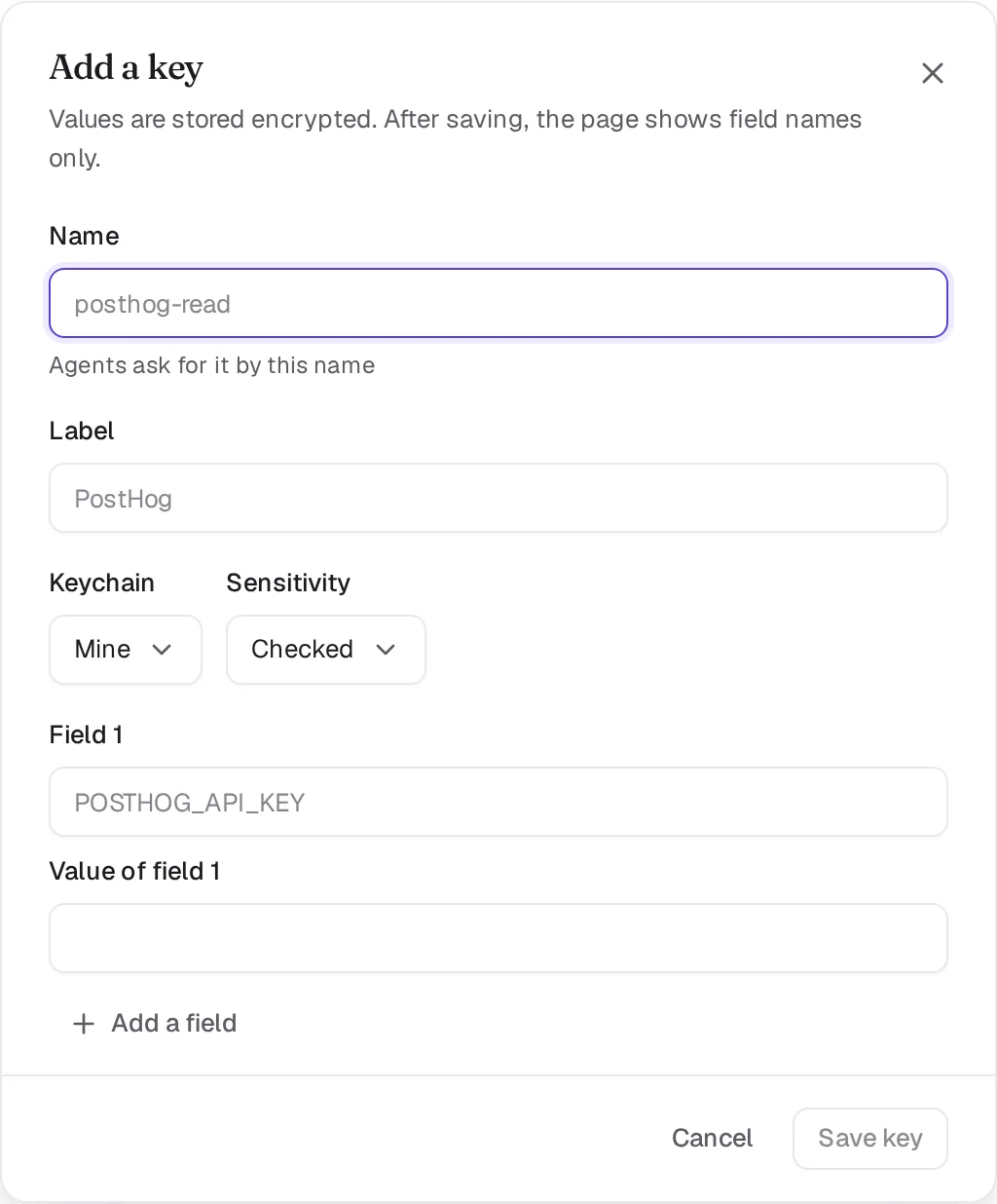
Open Settings, Keychains and click Add a key. Give it a Name that agents use to ask for it, such as posthog-read, pick the Keychain and the Sensitivity, and paste the value. A key can hold several fields, for example an ID and a secret. After you save, the page shows field names only.
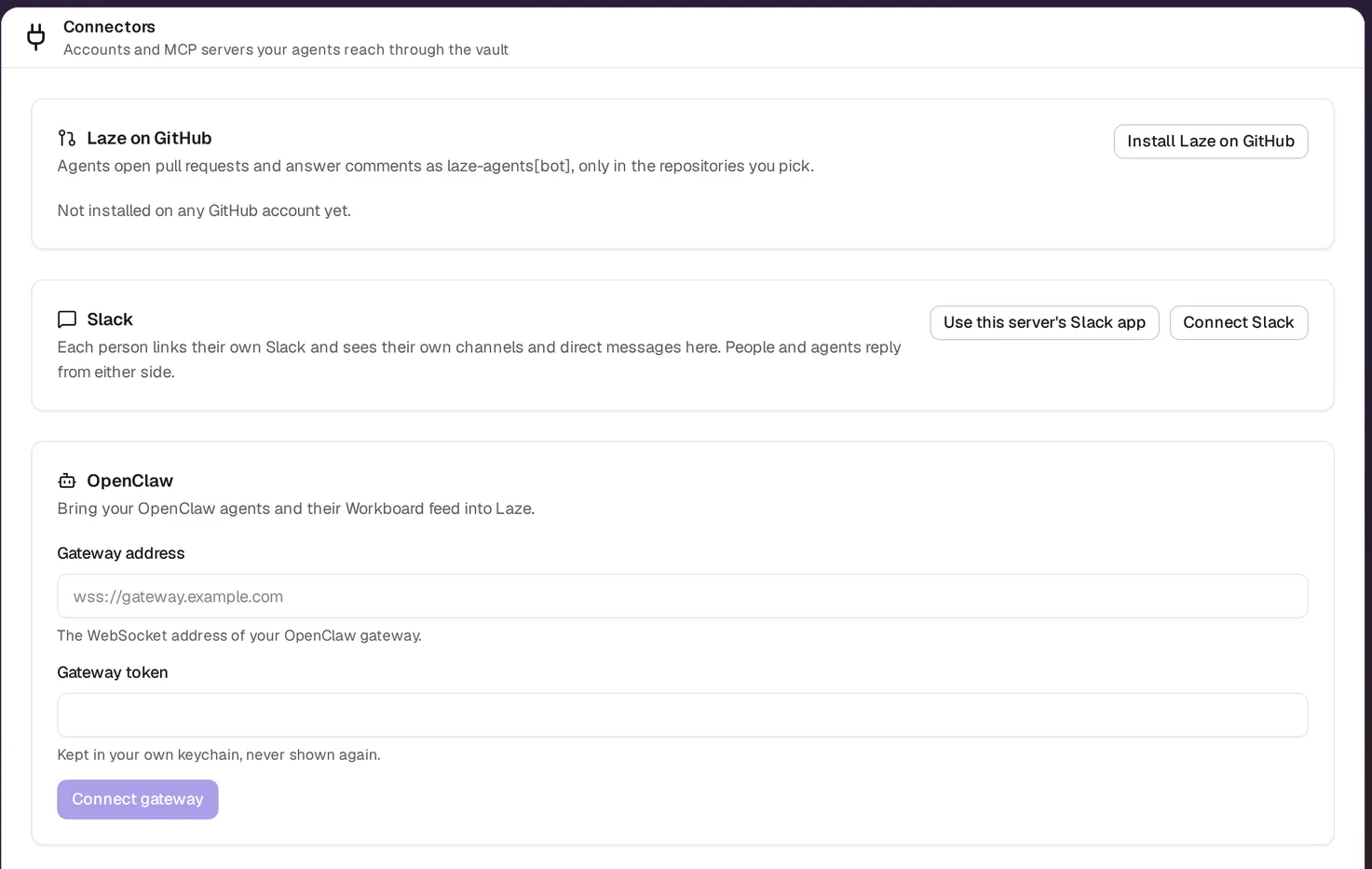
To connect an account instead, such as Gmail, Google Calendar, Google Drive, GitHub or an MCP server like Notion or Linear, open Settings, Connectors and click the service's Connect button.
Keychains
| Keychain | Who manages it | Who can use it |
|---|---|---|
| Mine (personal) | You | Your own agents, agents in a channel you lend it to, and the agents of a teammate you share it with |
| Workspace | Admins | Agents an admin grants it to by name |
| Agent | Admins | That agent |
A team agent never uses a personal keychain. To let a channel's agents use one of your personal connections, lend it to the channel.
Share a key with a teammate
Open the key, click Share, pick the person under Share with a person and click Share with passkey. You confirm with a passkey or Face ID; a password does not approve a share. The teammate's own agents then use the key under its level, the teammate approves those uses, and the teammate never sees the value. At Allow their agents can read the value, as with any Allow key. Click Remove to end the share; the next use is refused at once.
laze vault share <name> --with <email>, or an agent asking for you, creates a share that waits for your approval. Open Share on the key and click Approve with passkey, or Decline.
Always ask and Human only keys are shared only from the Vault page. From the CLI or an agent the share is refused, and the agent tells you to lower the key to Auto or Allow first if you want it to share from there.
Lowering a key's level
Only you can lower a key's level, on the Vault page. The page asks you to confirm and says what changes. From Always ask or Human only you also confirm with a passkey or Face ID. The CLI, the API and agents are refused, even through an approval card. Raising a level works from anywhere, laze vault update <name> --level always-ask included. Every share, removal and level change is in the key's usage log, with who made it and how.
Access levels
Each connection has one of four levels. The CLI takes the name in the second column, as in laze vault update <name> --level auto.
| Level | CLI | What happens when an agent asks |
|---|---|---|
| Allow | allow | The agent uses it without asking |
| Auto | auto | An automatic check reads the request and allows it, or asks a person when it is unsure; without a check set up, a person approves |
| Always ask | always-ask | A person approves each use |
| Human only | human-only | Agents never use it |
Some actions ask a person whatever the level. Sending email or messages outside the company always becomes a draft that a person sends. A call from outside your agents' computer always asks. If ten other callers used a connection in the last five minutes, the next use asks as well.
How keys are stored
| Level | Storage |
|---|---|
| Allow and Auto | Encrypted on the server, so agents can use them unattended. |
| Always ask and Human only | Two-lock encryption: the server can't open them alone, it needs your device's passkey. |
Two-lock encryption needs a passkey or Face ID enrolled under Settings, Vault, Passkeys. A key saved before you enrolled one, or before this storage existed, shows Seal it in the key list: click it and confirm with your passkey. Raising a key to Always ask seals it too. Workspace keys, keys sent through the egress proxy and connected accounts are encrypted on the server at every level.
When you allow an agent for a while on a two-lock key, your device encrypts the value to that agent's run key. The server keeps that copy, which it cannot open, only until the lease ends. Lowering a two-lock key to Auto or Allow opens it on your device first. A two-lock key you share with a teammate still asks you for each use, since only your device opens it.
Who approves a request
The level that applies depends on who asked the agent. When your personal agent works for you, it follows the connection's level. When a teammate asks your personal agent to do something with your accounts, the request comes to you. A schedule runs as the person who created it.
Allow or deny a request
When a use needs a person, the agent posts a card in the thread it is working in, showing the command it wants to run. The person who decides answers with one of:
- Allow: release the value this once.
- Allow for this agent: give the agent a lease, so it can use the connection without asking until the lease ends. A lease lasts at most two days.
- Deny: refuse, with an optional note that the agent reads.
An unanswered card is denied after 24 hours. Every use and every answer is in the key's Usage log and in the Audit log.
The usage log
Open a key on the Vault page to see its usage log, newest first. Each line names who used the key, an agent or a person, and how: laze vault run, through the proxy, released to the agent, or revealed. For an agent it also says whether it ran on its Laze computer or on a connected machine. An approval shows how many uses came under it, and each of those uses says it came under an approval. A row's Last used counts every use, by an agent or a person; saving or changing a key is not a use. laze vault uses <name> prints the same log.
Use a key from the command line
Inside a hosted agent's turn, the agent runs a command with a key's values in its environment:
laze vault run posthog-read --reason "Count sign-ups from last week for the weekly report" -- python report.pyThe reason is one plain sentence that the person approving reads. The command's output is redacted, so the values do not end up in the chat. If the use is denied, laze vault run exits with code 77.
To use the vault from Claude Code, Codex or a script on your own machine, see Vault from Claude Code and Codex.
For API calls that leave your agents' computer, the agent holds a placeholder instead of the value, and the vault's egress proxy swaps in the real value on the way out.
See a stored value
Only the owner of a key can reveal its value, after signing in again within the last five minutes. The value shows for 30 seconds, and each reveal is recorded in the audit log.
Also check: Hosted agents, CLI reference.